Two switches and one choice. It takes a minute, and you don't need a new account.
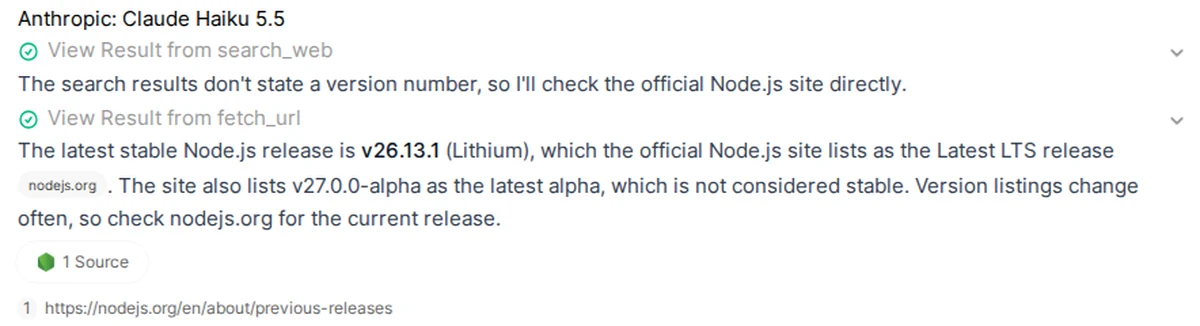
Without web search, Open WebUI only knows what the AI model learned months ago. We asked it for the latest version of Node.js. It gave us one that was a year out of date. Then we turned search on and asked again. This time it checked nodejs.org and got it right, with the link under the answer.
Switch 1: in the settings
Click your profile picture and open Settings. Go to Admin, then Tools, then Web Search. Turn it on.
Under Web Search Engine, pick DDGS. It's free and needs no key. Then set its backend to Auto (Random) and click Save.
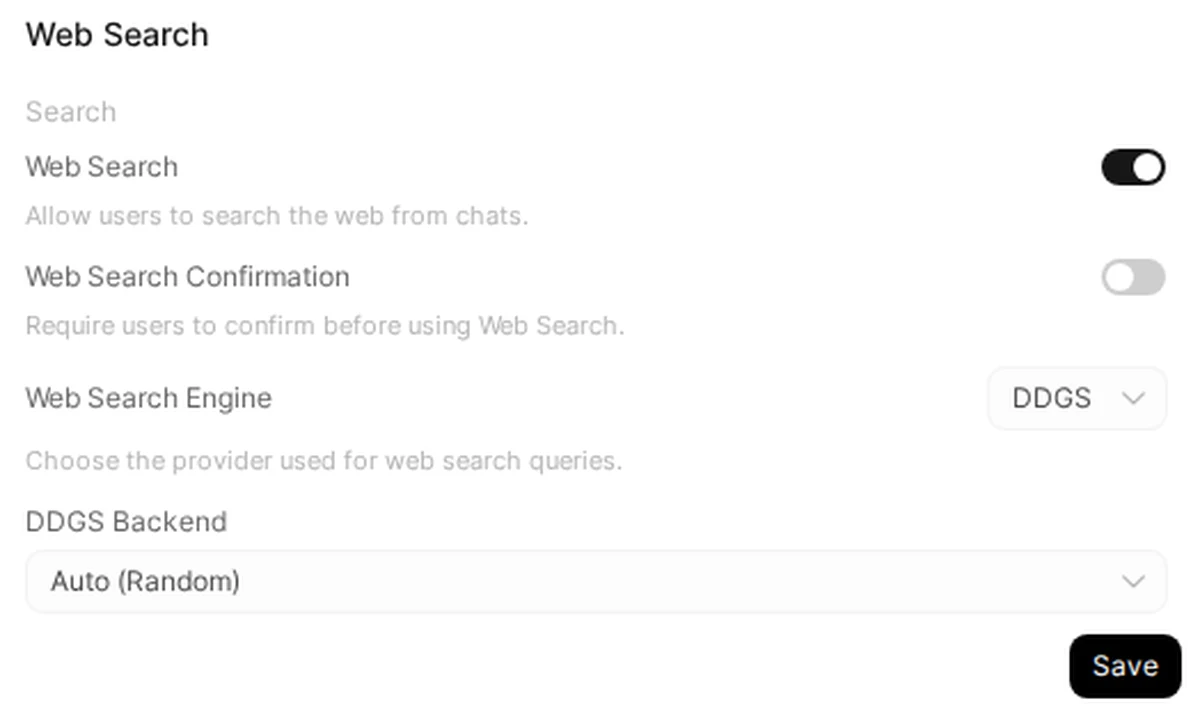
Why Auto? We tried the plain "DuckDuckGo" option, and it never worked from a server. Auto asks a few search engines and uses whichever answers.
Switch 2: in the chat
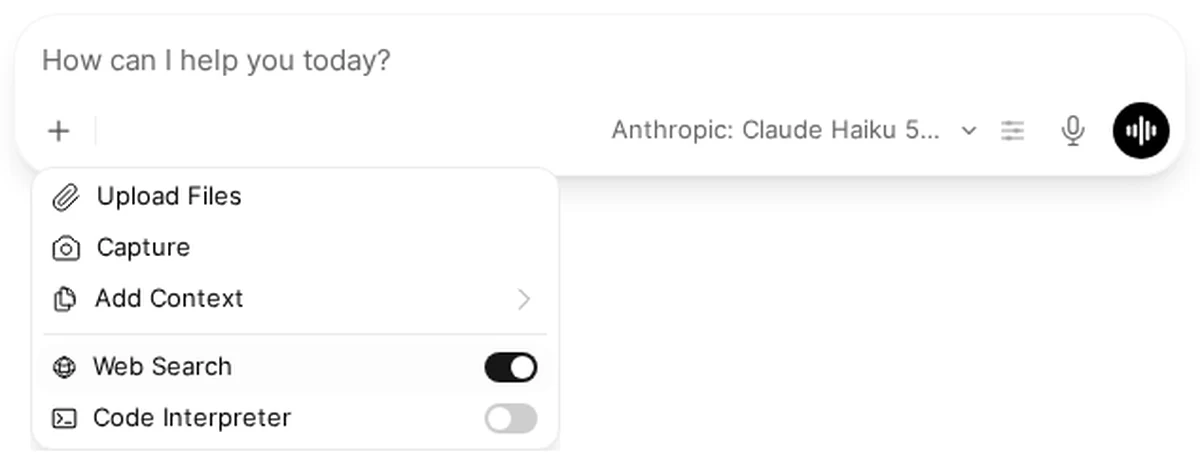
In a chat, click the + next to the message box and turn on Web Search.
This is the step most people miss. The option only shows up after switch 1 is on.
Did it actually search?
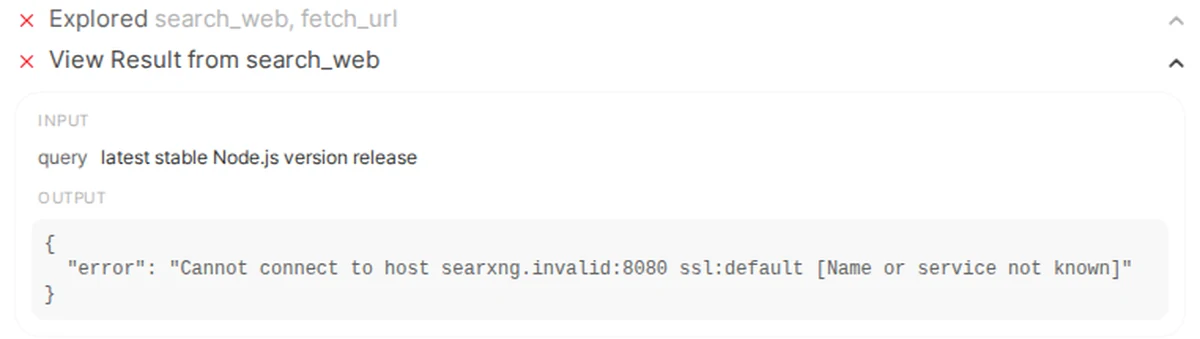
Open WebUI doesn't warn you when a search fails. The AI just answers from memory, and it can sound just as sure.
So check the answer. If you see a Source button under it, the search worked. If you see a small red × at the top, it didn't. Click the × to see why.
Does it cost more?
A little. The search is free, but the AI reads the results, and that uses more of your AI credit. In our test a question went from almost nothing to about a third of a cent. Turn search on when you need fresh facts, and off when you don't.
On Podway, Open WebUI comes with your AI key already connected, so these two switches are all you do.