You don't add a trusted device from a menu. Once Trusted Devices is turned on, Claude asks you to add a device the first time you use Remote Control on it, right after a fresh sign-in. You confirm with Face ID, Touch ID, Windows Hello or a security key, and that's it.
Trusted Devices protects Remote Control: the feature that lets you watch and steer a Claude Code session from your phone or browser. With it on, only devices you have added can do that. It is off by default. On Team and Enterprise plans an Owner turns it on for everyone; on Pro, Max and Ultra you can turn it on for yourself.
Most people who search for this are stuck on one of three things.
"I can't find the Add device button"
There isn't one. Sign in on the phone, browser or Claude Desktop you want to use, then open a Remote Control session. Claude asks you to add the device; confirm it. To check it worked, open your account settings: the device appears under Trusted devices with its name and date.
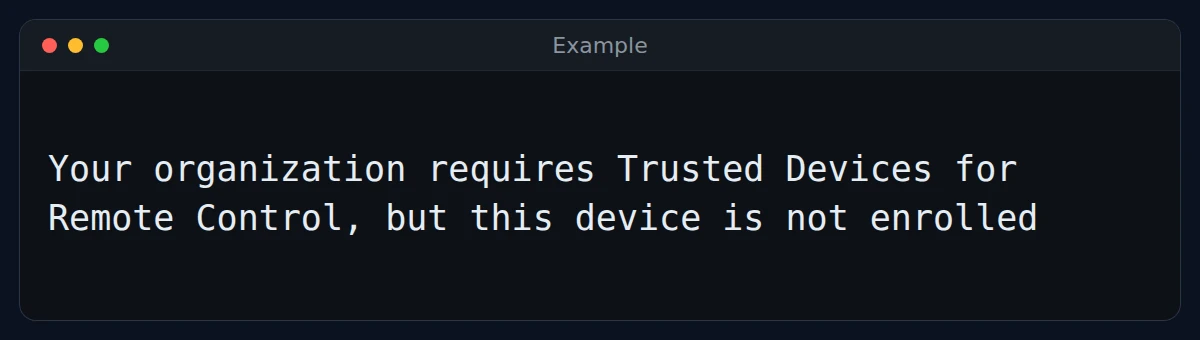
If Claude never asks, one of these is usually why:
- The setting is off, so there is nothing to add.
- Your sign-in is not fresh. Claude only offers to add a device shortly after a full sign-in. Sign out, sign back in, and open Remote Control again.
- Your device has no Face ID, Touch ID or Windows Hello. Use a hardware security key instead.
If your list shows Sign in again to verify your device, click Sign in.
"Do I have to sign in again every day?"
No. About once a day Claude checks it is still you: if your last sign-in is more than 18 hours old, the next time you use Remote Control you get one Face ID or Touch ID prompt. One tap, not a full sign-in. Normal chat in Claude is not affected.
"What about the computer running Claude Code?"
Nothing to do: it becomes trusted when you sign in to Claude Code. Two things can still block it on a server. Sign in with claude auth login, because a long-lived token from claude setup-token cannot start Remote Control. And if your organization requires trusted devices, the telemetry switches DISABLE_TELEMETRY and DO_NOT_TRACK must not be set.
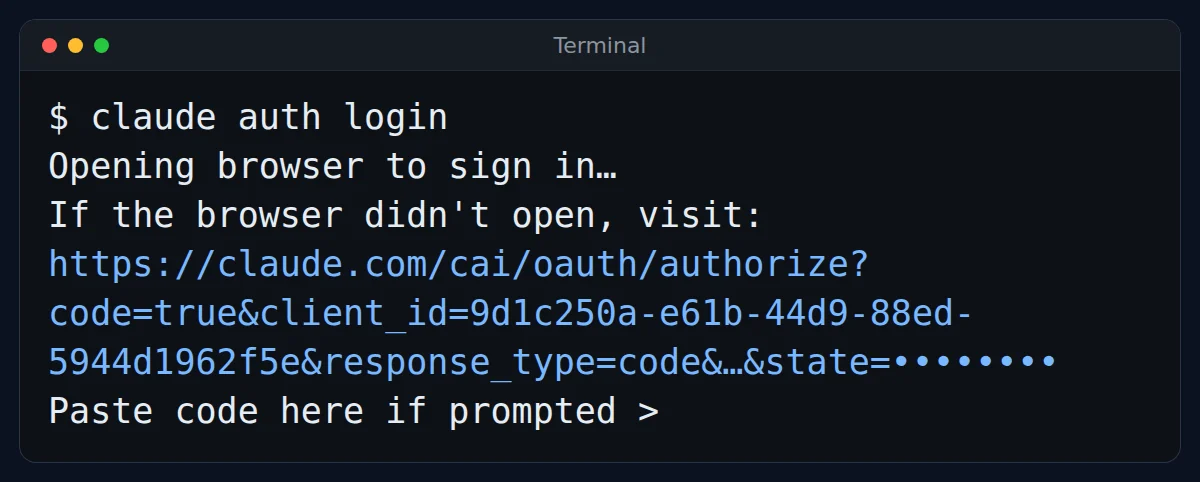
On Podway, Claude Code runs on its own always-on machine with a full login and none of those switches set, so Remote Control keeps working when your organization requires trusted devices. The daily check happens on your phone, not on that machine.
For Owners: turning it on
Go to Organization settings > Capabilities > Remote sessions and turn on Require trusted devices. Some older guides point to a different page; the current docs say Capabilities. To remove a lost phone, open the Trusted devices list and remove it there.
Not to be confused with "Workspace not trusted", which is about trusting a project folder in Claude Code.